Quick Sales
Quick Sales let you complete fast transactions without creating quotes or work orders. Perfect for walk-in customers buying products off the shelf.
Overview
Use Quick Sales when you need to:
- Sell products to a walk-in customer
- Complete a transaction quickly without scheduling work
- Process simple purchases that don't need installation
The workflow is simple: add items, take payment, done.
Creating a Quick Sale
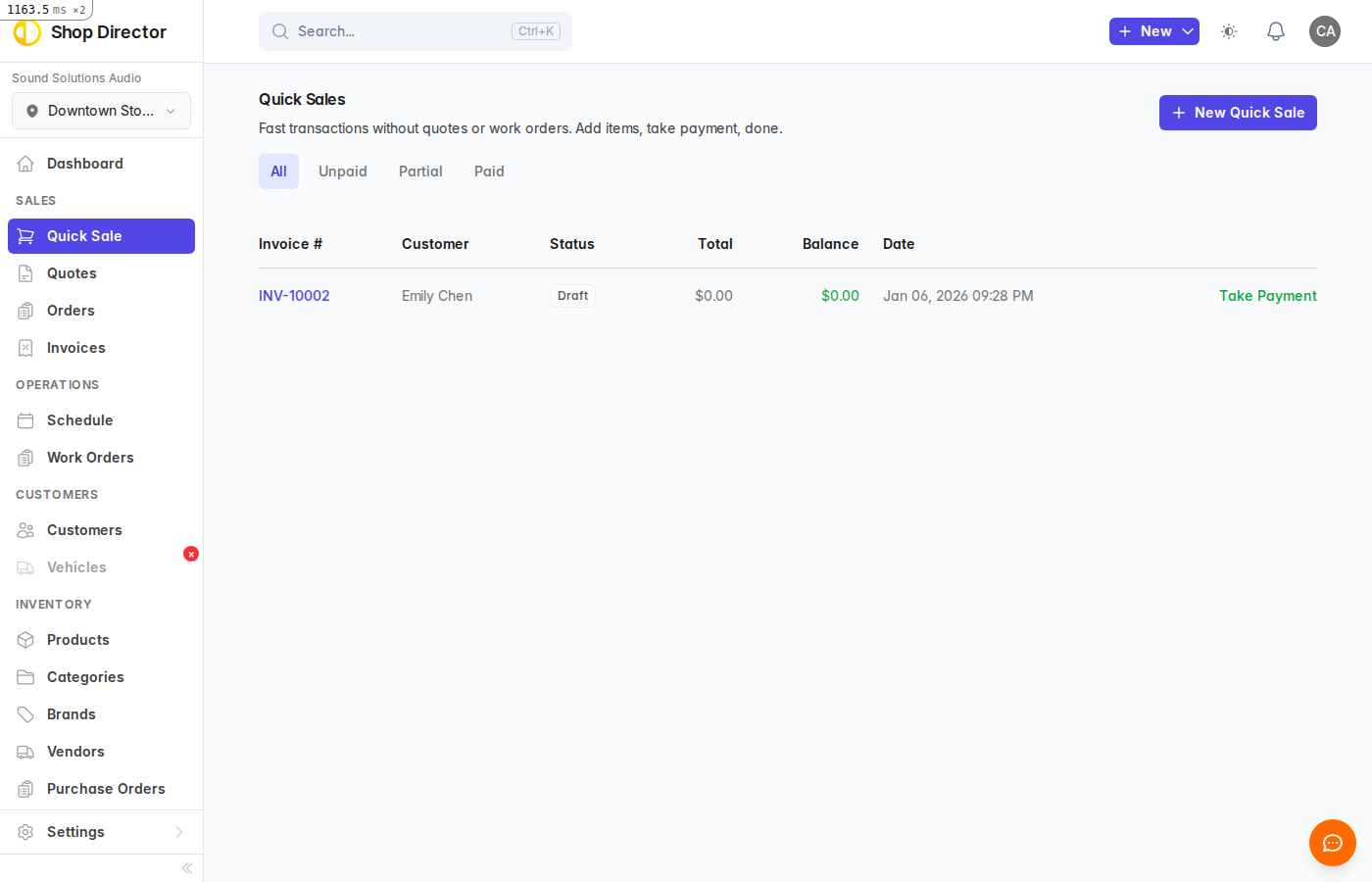
- Click Sales in the sidebar, then Quick Sales
- Click the New Quick Sale button
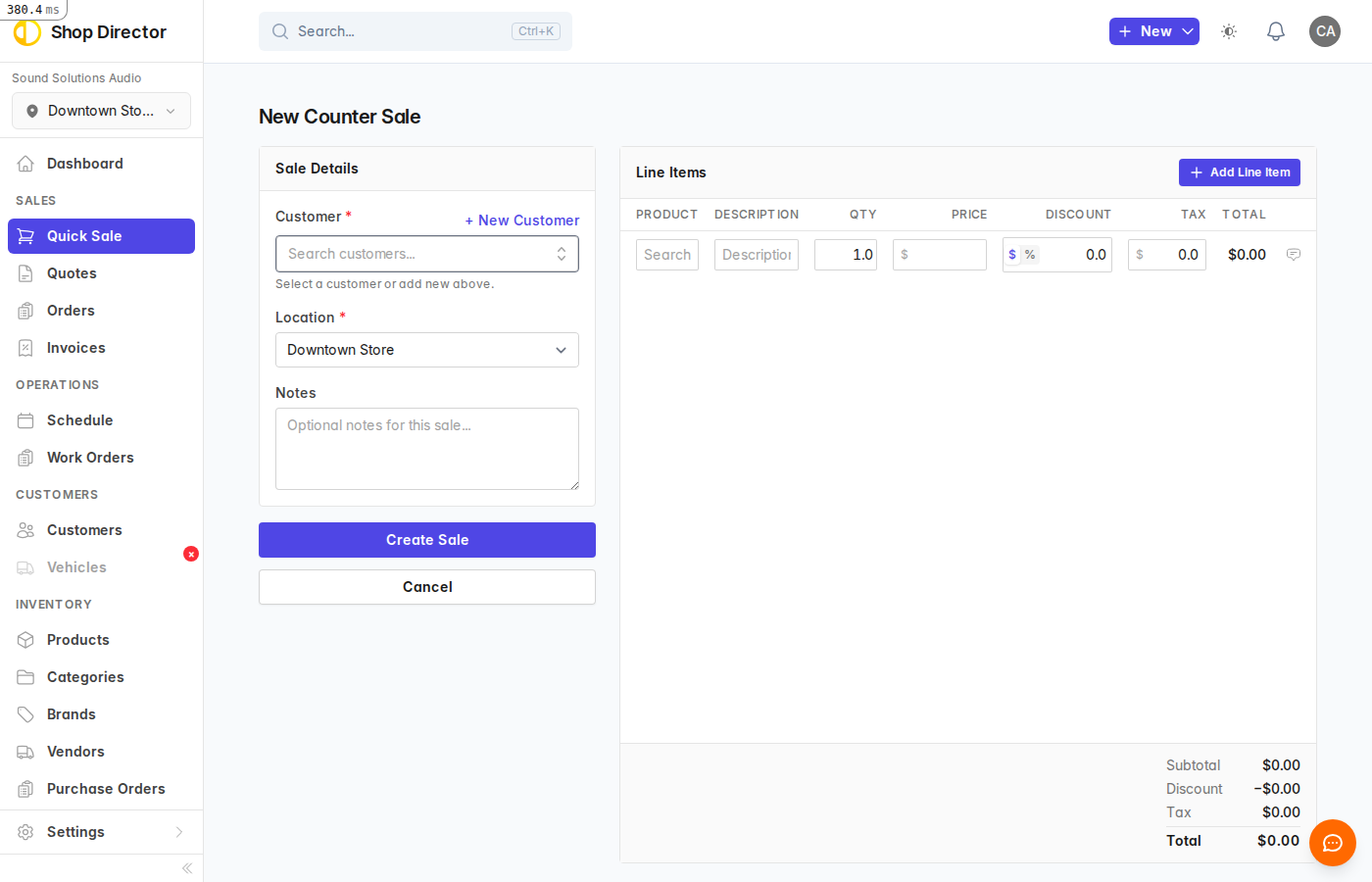
- Select a Customer from the dropdown (or click Add new customer to create one)
- Choose the Location for this sale
- Add optional Notes if needed
Adding Items
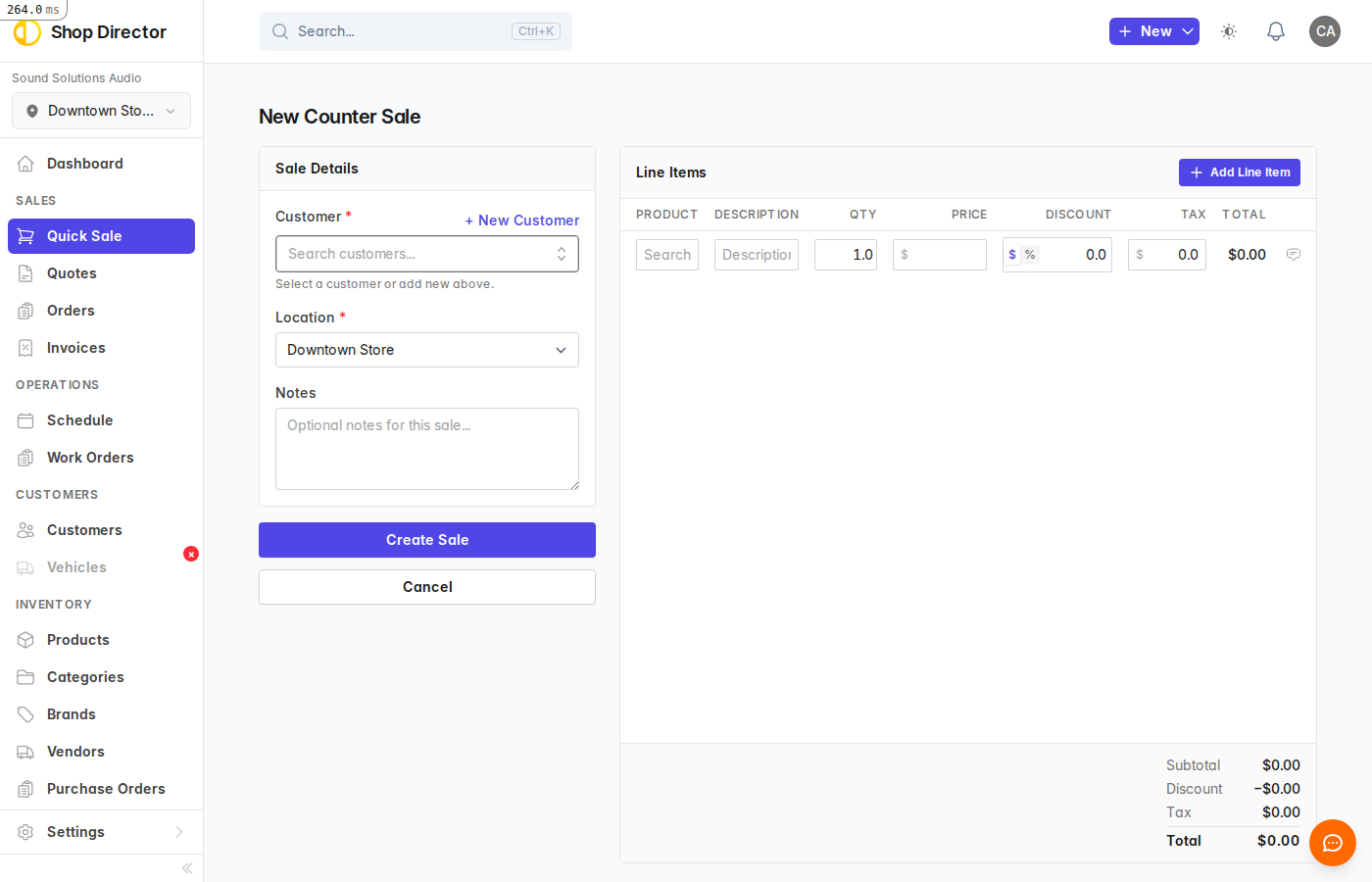
- Click Add Line Item to add a product
- Select a product from the dropdown - the price and description auto-fill
- Adjust the Quantity if needed
- Repeat to add more items
Custom Items
Don't see the item you need? Leave the product blank and type a custom description and price.
The totals at the bottom update automatically as you add items.
Recording Payment
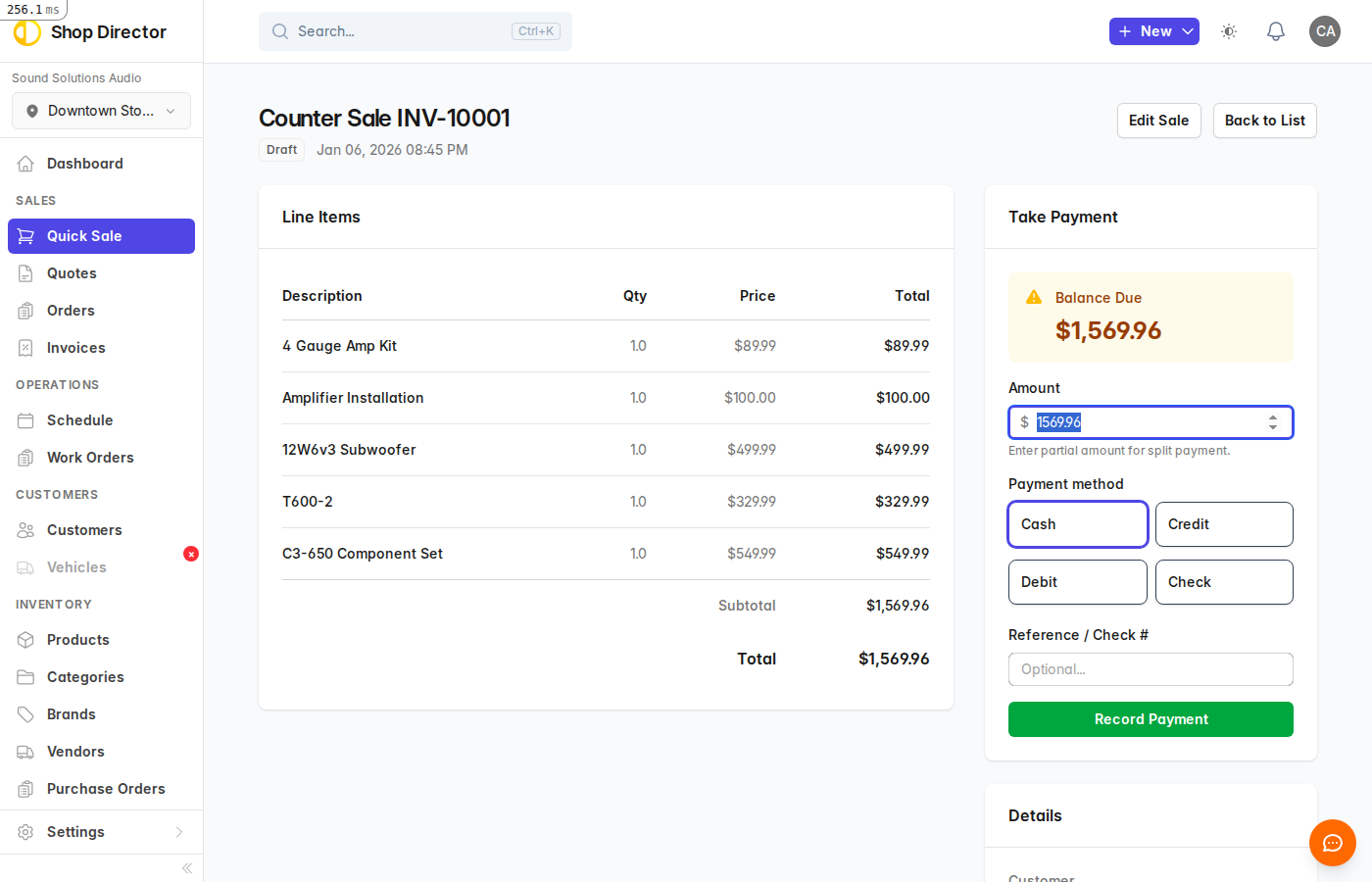
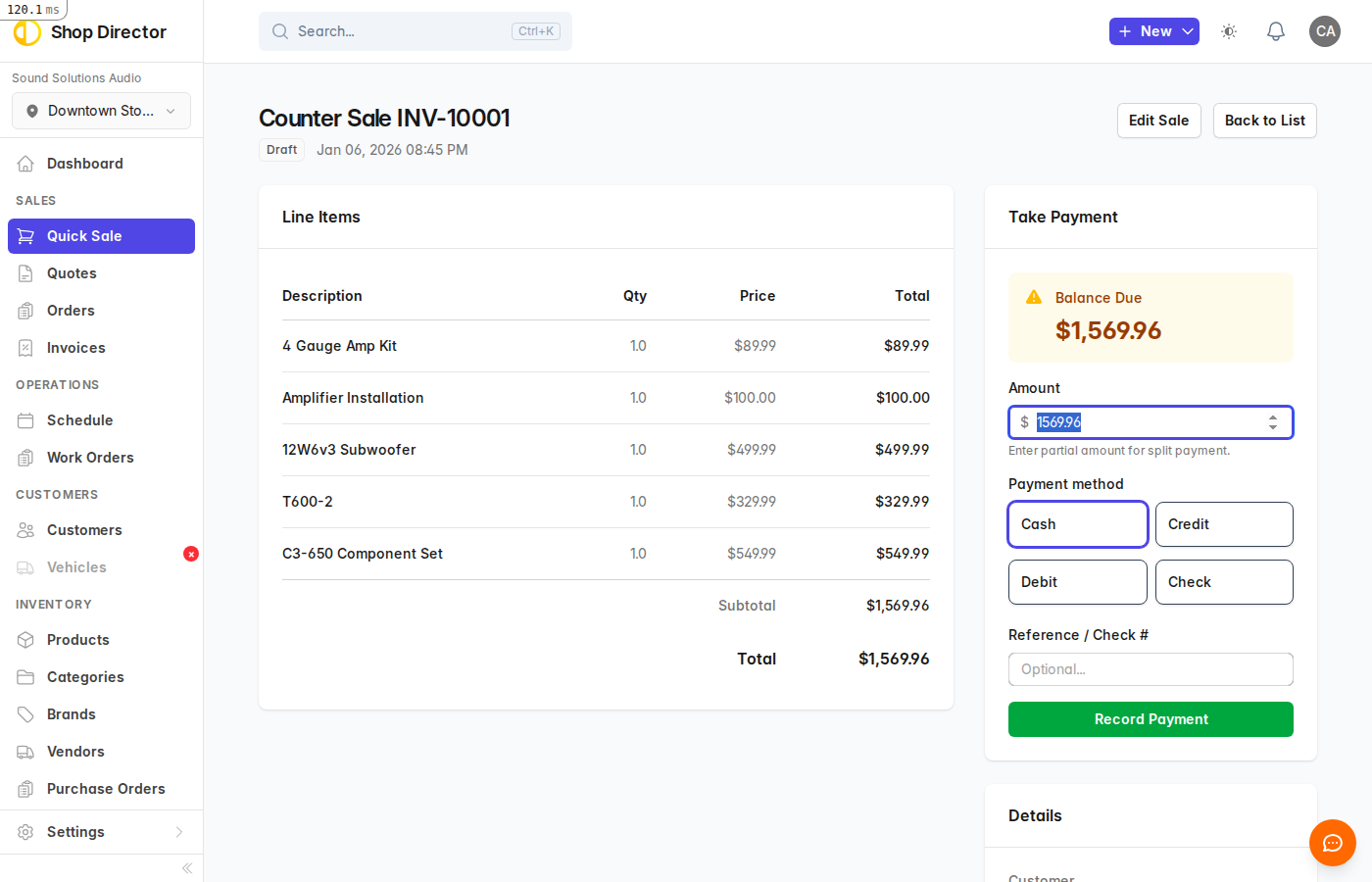
After clicking Create Sale, you'll see the payment screen.
- The Balance Due shows how much the customer owes
- The Amount field defaults to the full balance
- Select a Payment Method: Cash, Credit, Debit, or Check
- For checks, enter the check number in Reference
- Click Record Payment
Partial Payments
Need to split payment across multiple methods?
- Enter the partial amount (less than the full balance)
- Select the payment method and click Record Payment
- The balance updates to show the remaining amount
- Record additional payments until the balance is zero
Each payment appears in the Payments section with the time and method.
After Payment
Once fully paid:
- The sale shows a Paid status
- Click Print Receipt to print for the customer
- The sale appears in the Paid filter on the Quick Sales list
Editing a Sale
You can edit unpaid sales:
- Open the sale and click Edit Sale
- Modify the customer, items, or notes
- Click Update Sale to save changes
Paid Sales
Once a sale is fully paid, it cannot be edited.
Tips
- Speed up checkout - Set up frequently sold items as products for quick selection
- Track everything - Add notes for special circumstances or customer requests
- Multiple payments - Accept different payment types on the same sale (e.g., part cash, part card)